Protein Puppets
Learn how to create and manage protein puppets for coordinated animation and manipulation.
Watch the full tutorial:
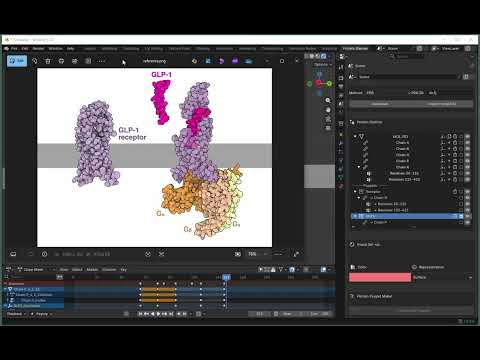
What is a Puppet?
A puppet is a collection of protein chains and/or domains grouped together. Puppets allow you to:
- Move multiple parts as a single unit
- Apply transformations to groups
- Create coordinated animations
- Organize complex multi-protein scenes
Think of puppets as “handles” for controlling multiple protein parts at once.
Creating a Puppet
Step-by-Step
- Select items in the Protein Outliner
- Click checkboxes next to chains or domains you want to group
- You can select multiple items from the same or different proteins
-
Open Protein Puppet Maker panel
-
Click Create New Puppet
-
Name your puppet in the dialog that appears
- Click OK
The puppet will now appear in the outliner with all selected items as members.
Puppet Membership Rules
- Exclusive membership: Each chain/domain can only belong to ONE puppet
- Cannot puppet proteins: Only chains and domains can be puppeted
- Cannot puppet other puppets: Puppets cannot contain other puppets
If you try to create a puppet with items already in another puppet, you’ll see an error message.
Managing Puppets
Selecting a Puppet
- Click the checkbox next to the puppet name in the outliner
- This selects the puppet’s Empty controller object
Moving a Puppet
- Select the puppet in the outliner
- Use Blender’s transform tools (G, R, S) or manipulators
- All members move together
Adding Members to a Puppet
Currently, you must:
- Delete the existing puppet
- Select all desired items (including new ones)
- Create a new puppet
(Future versions will support editing puppet membership)
Removing a Puppet
- Find the puppet in the Protein Outliner
- Click the delete (trash) icon next to the puppet name
- Confirm deletion
Note: Deleting a puppet removes the grouping but keeps all member chains/domains.
Puppet Hierarchy in Outliner
Puppets appear in a special section at the bottom of the Protein Outliner:
Proteins
├─ Protein A
│  └─ Chain A
│     └─ Domain 1
└─ Protein B
   └─ Chain B

─── Puppets ───
└─ My Puppet
   ├─ Protein A > Chain A > Domain 1
   └─ Protein B > Chain B
Members shown under puppets are references - the originals remain in their protein hierarchy.
Use Cases for Puppets
Multi-Chain Complexes
Group all chains of a protein complex to move them as a unit:
- Select all chains of the complex
- Create a puppet called “Complex”
- Animate the entire complex together
Functional Units
Group domains by function:
- “Active Site” puppet with catalytic residues
- “Binding Domain” puppet with substrate-binding regions
- “Regulatory Domain” puppet
Comparative Views
Create puppets of equivalent domains from different proteins to compare them side-by-side.
Puppets and Poses
Puppets are essential for the pose system:
- Poses save the positions of objects in puppets
- You select which puppets to include in each pose
- See Manage Poses for details
Tips and Best Practices
Naming Conventions
Use descriptive puppet names:
- “Kinase_Domain”
- “DNA_Binding_Region”
- “Full_Complex”
- “Chain_A_B_C”
Organization
- Create puppets for functional units
- Group related chains/domains
- Use puppets to simplify complex scenes
Animation Workflow
- Create puppets for parts that move together
- Create poses for different conformations
- Keyframe the poses for animation
Troubleshooting
Cannot Create Puppet
- Items already in puppet: Remove from existing puppet first
- Nothing selected: Select at least one chain or domain
- Protein selected: Cannot puppet entire proteins, select chains/domains
Puppet Doesn’t Move Members
- Check that members are actually part of the puppet (look under puppet in outliner)
- Make sure you’re moving the puppet controller (Empty object), not individual members
Members Appear Twice
This is normal - members appear both in their original protein hierarchy AND under the puppet (as references).
Next Steps
Now that you understand puppets, learn how to:
- Manage Poses - Save and restore puppet positions
- Keyframe Animation - Animate your puppets
| Back to Home | Previous: Update Visuals | Next: Manage Poses |