Manage Poses
Save and restore different protein conformations using the Pose Library.
Watch the full tutorial:
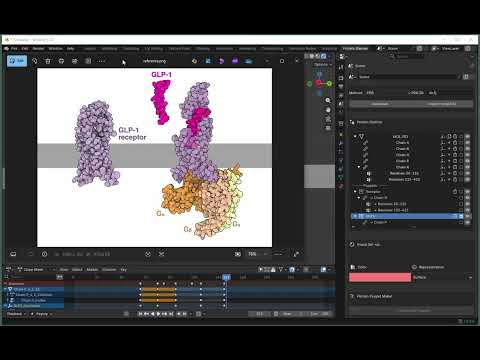
What is a Pose?
A pose is a saved snapshot of puppet positions. Poses capture:
- Location, rotation, and scale of objects in selected puppets
- Multiple puppets can be included in a single pose
- Poses can be applied to restore saved positions
Think of poses as “bookmarks” for different protein conformations or arrangements.
Creating a Pose
Prerequisites
Before creating poses, you need:
- At least one puppet created (see Protein Puppets)
- Puppets positioned as desired in the 3D viewport
Step-by-Step
- Position your puppets in the 3D viewport
- Use transform tools (G for move, R for rotate, S for scale)
- Arrange proteins to show the conformation you want to save
-
Open Pose Library panel
-
Click Create Pose
- In the dialog:
- Name the pose (e.g., “Open State”, “Bound”, “Closed”)
- Select which puppets to include
- Check the boxes next to puppets you want to save
- Click OK
The new pose appears as a card in the Pose Library panel.
Understanding Pose Cards
Each pose is displayed as a card showing:
- Pose name
- Included puppets (listed below name)
- Screenshot placeholder (for visual reference)
- Action buttons: Apply, Capture, Delete
Applying a Pose
To restore a saved pose:
- Find the pose card in the Pose Library panel
- Click the Apply button
- All puppets in the pose snap to their saved positions
This is useful for:
- Switching between conformational states
- Returning to a reference position
- Creating keyframes at specific poses
Updating a Pose (Capture)
If you’ve adjusted puppet positions and want to update an existing pose:
- Position puppets as desired
- Find the pose card you want to update
- Click the Capture button
- Current positions overwrite the saved positions
Deleting a Pose
To remove a pose from the library:
- Find the pose card
- Click the Delete (trash) button
- The pose is removed permanently
Multiple Poses Workflow
Create multiple poses to represent different states:
Example: Enzyme Catalytic Cycle
- Pose 1: “Substrate Free” - Open active site
- Pose 2: “Substrate Bound” - Closed around substrate
- Pose 3: “Transition State” - Intermediate conformation
- Pose 4: “Product Release” - Reopening
Example: Protein-Protein Interaction
- Pose 1: “Dissociated” - Proteins far apart
- Pose 2: “Approaching” - Proteins near each other
- Pose 3: “Bound” - Proteins in complex
Poses and Animation
Poses are designed to work with keyframe animation:
- Create poses for key conformations
- Apply a pose
- Add a keyframe (see Keyframe Animation)
- Move to next frame
- Apply different pose
- Add another keyframe
Blender interpolates between poses automatically!
Tips and Best Practices
Naming
Use descriptive pose names that indicate the biological state:
- “ATP_Bound”
- “Open_Conformation”
- “Active_State”
- “Inhibitor_Complex”
Organization
- Create poses for distinct conformational states
- Save intermediate poses for smoother animations
- Group related poses by naming (e.g., “Complex_1”, “Complex_2”)
Testing
Before creating final poses:
- Test that puppets return to correct positions when applied
- Verify all needed puppets are included
- Check that transformations look correct
Pose Storage
Poses are stored:
- Per-scene: Poses are saved with the Blender file
- Not per-file: Poses don’t transfer between different .blend files
- In blend file: Saving the .blend file preserves all poses
To share poses between files, you would need to manually recreate them.
Troubleshooting
Pose Doesn’t Apply Correctly
- Puppets deleted: If puppets in the pose no longer exist, application fails
- Puppets renamed: Pose references puppets by ID, not name
- Objects moved: Make sure you’re applying to the correct scene
Can’t Create Pose
- No puppets exist: Create at least one puppet first
- No puppets selected: Check at least one puppet in the creation dialog
- Duplicate name: Pose names should be unique (though not enforced)
Puppets Don’t Move When Applying Pose
- Check that the pose includes those puppets
- Verify puppets still exist in the scene
- Check Blender console for errors
Advanced Usage
Partial Pose Application
Currently, poses apply all included puppets at once. To apply only some puppets:
- Create separate poses for different puppet groups
- Apply poses selectively
Pose Interpolation
For smooth transitions between poses:
- Create keyframes at two different poses
- Blender interpolates positions automatically
- Adjust interpolation curve in Graph Editor
Next Steps
Now that you understand poses, learn how to:
- Keyframe Animation - Animate transitions between poses
- Update Visuals - Combine pose changes with color animations
| Back to Home | Previous: Create Puppets | Next: Keyframe Animation |