Import Proteins
Learn how to load protein structures into Blender using ProteinBlender.
Watch the full tutorial:
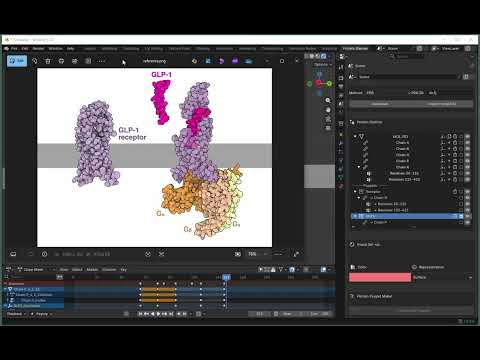
Overview
ProteinBlender supports importing proteins from:
- Local PDB or mmCIF files
- RCSB Protein Data Bank (online)
- AlphaFold Database (online)
Opening the Importer
- Open Blender and make sure ProteinBlender is installed
- The ProteinBlender workspace should open automatically
- Look for the Importer panel on the right side
- If you don’t see it, press N in the 3D viewport to open the sidebar
Import from File
Step-by-Step
- In the Importer panel, locate the Import from File section
- Click the folder icon to browse for a file
- Navigate to your PDB or mmCIF file
- Select the file and click Import
- Wait for the import to complete (progress shown in bottom left)
Supported File Formats
- .pdb - Protein Data Bank format
- .cif / .mmcif - Macromolecular Crystallographic Information File
Import from Online Database
From RCSB PDB
- In the Importer panel, find the Import from PDB section
- Enter a 4-character PDB ID (e.g., 1CRN, 6LU7, 7BV2)
- Click Fetch from PDB
- The structure will be downloaded and imported automatically
Popular PDB IDs to try:
- 1CRN - Crambin (small protein, good for testing)
- 6LU7 - SARS-CoV-2 Main Protease
- 1ATP - ATP Synthase
From AlphaFold
- In the Importer panel, find the Import from AlphaFold section
- Enter a UniProt ID (e.g., P69905, Q9Y6K9)
- Click Fetch from AlphaFold
- The predicted structure will be downloaded and imported
After Import
Once imported, your protein will:
- Appear in the 3D viewport
- Be listed in the Protein Outliner panel
- Be centered at the world origin
- Display with default cartoon representation
Managing Multiple Proteins
You can import multiple proteins into the same scene:
- Simply import additional proteins using any method
- Each protein appears as a separate entry in the Protein Outliner
- Use the outliner to select and manage individual proteins
Troubleshooting
Import Fails
- Check your internet connection (for online imports)
- Verify the PDB ID or UniProt ID is correct
- Check the Blender console for error messages
Protein Doesn’t Appear
- Check that you’re in the 3D viewport (not another editor)
- Press Numpad . (period) to frame the imported protein
- Look in the Protein Outliner to verify the protein was imported
Very Slow Import
- Large proteins (1000+ residues) may take 30-60 seconds
- Complex multi-chain assemblies take longer
- Check progress in the bottom-left corner of Blender
Understanding the Protein Structure
After import, you’ll see:
- Chains: Individual polypeptide chains (labeled A, B, C, etc.)
- Domains: Full chain domains (you can split these later)
- Hierarchy: Organized in the Protein Outliner panel
Next Steps
Now that you’ve imported a protein, learn how to:
- Update Visuals - Change colors and molecular styles
- Create Puppets - Group parts for animation
| Back to Home | Previous: Installation | Next: Update Visuals |